Configuring OpenID SSO for Salesforce
These steps show you how to configure the single sign-on (SSO) functionality using OpenID between ManageEngine ADSelfService Plus and Salesforce.
Prerequisites
- Do not terminate the session before the configuration is complete in both the identity provider and the service provider.
- Please ensure that ADSelfService Plus is using HTTPS to ensure proper functioning of SSO.
- Log into ADSelfService Plus as an administrator.
- Go to Configuration > Password Sync/Single Sign On and click Add Application. Select Salesforce from the list.
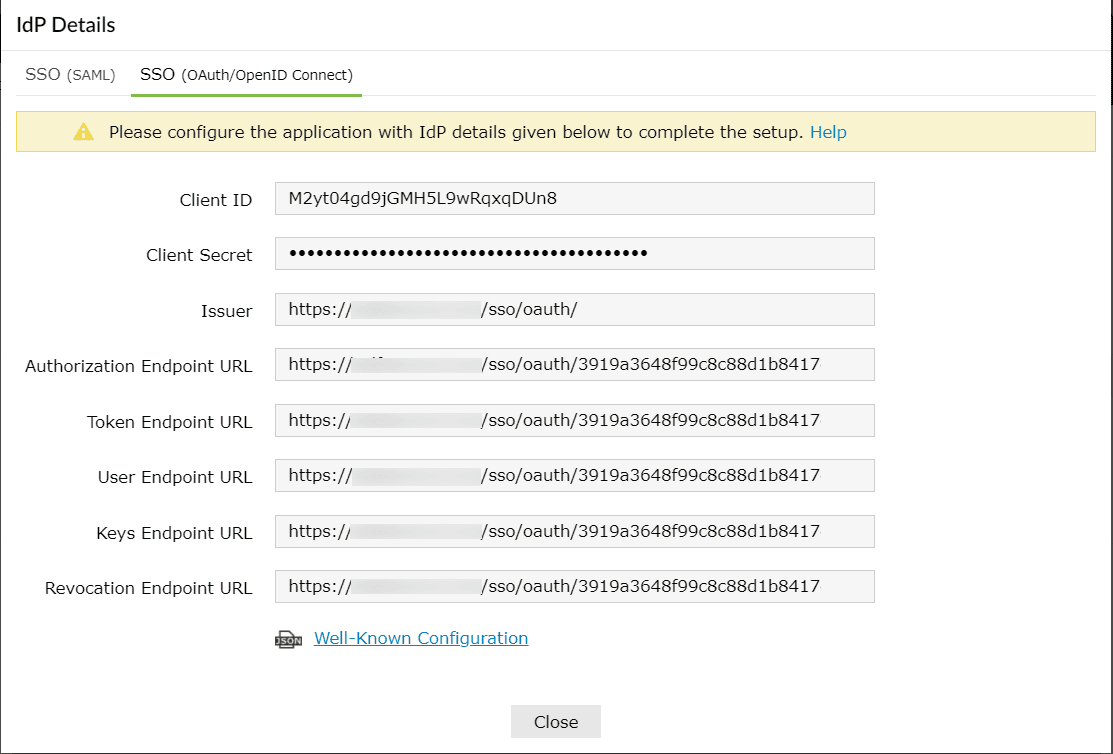
- Click IdP Details and select the SSO(OAuth/OpenID) Connect tab.
- Copy the Client ID, Client Secret, Issuer, Authorization Endpoint URL, Token Endpoint URL, and User Endpoint URL information.
Salesforce (service provider) configuration steps
- Log into Salesforce with administrator credentials.
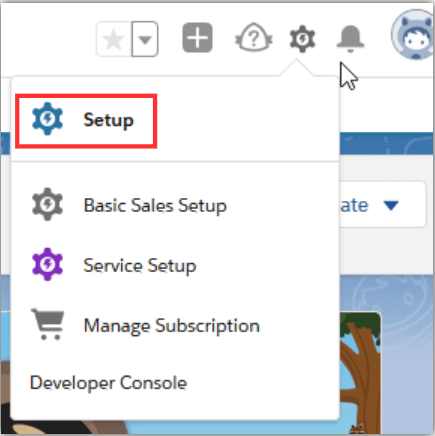
- Navigate to the Setup page by clicking the Gear icon at the top-right corner.
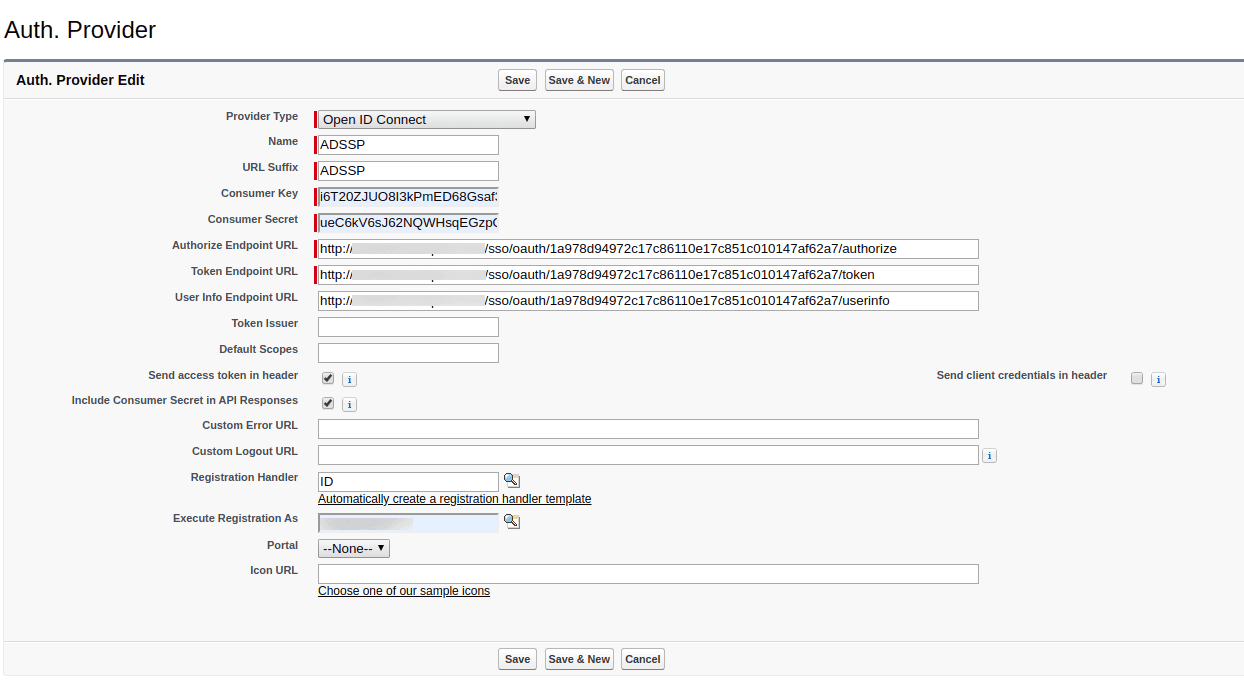
- Search for Auth.Provider in the Quick Find/Search box at the top-left. This is where you can add new authentication providers.
- Click New to add a new Auth. Provider.
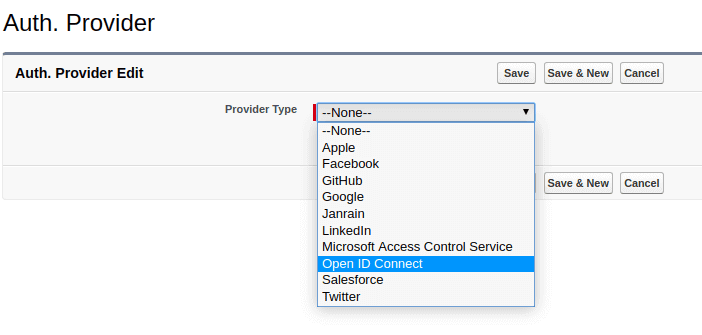
- Select the Provider Type as Open ID Connect.
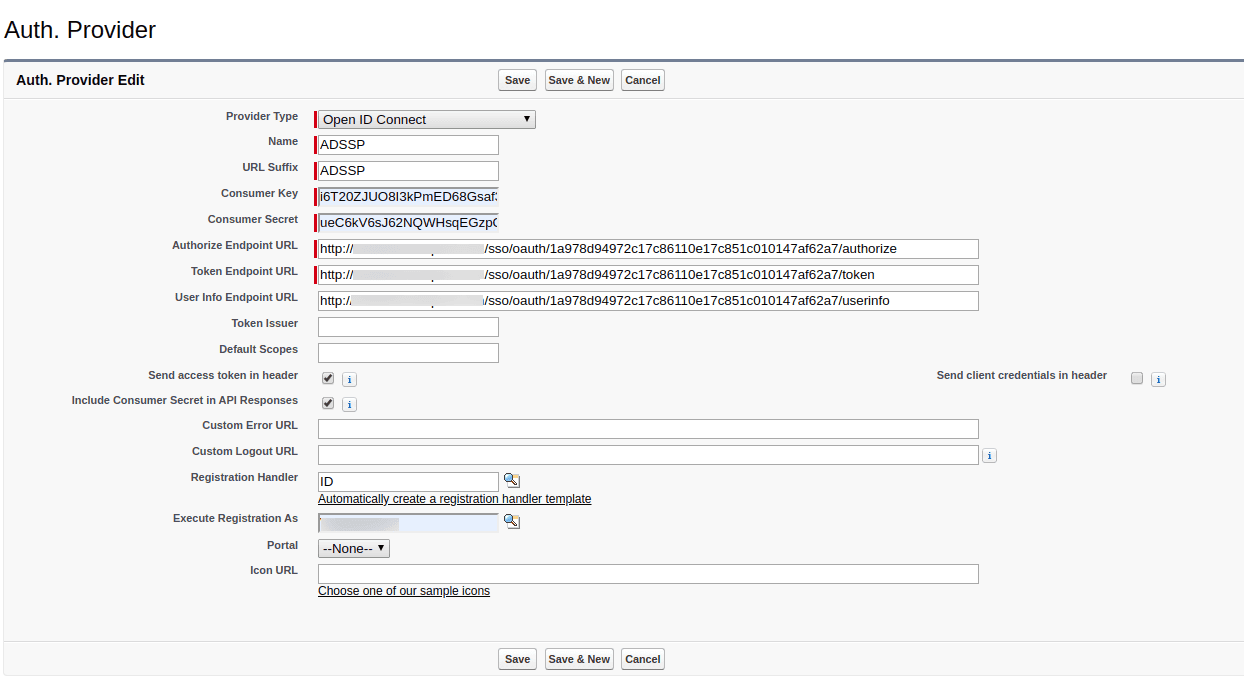
- Enter the Name and URL Suffix, which will be used in the client configuration URLs generated by Salesforce according to your preference.
- Fill the following fields with the corresponding details saved in Step 4 of the Prerequisites:
- Consumer Key: Client ID
- Consumer Secret: Client Secret
- Token Issuer: Issuer
- Authorization Endpoint URL: Authorization Endpoint URL
- Token Endpoint URL: Token Endpoint URL
- User Info Endpoint URL: User Endpoint URL
- Now, click the Automatically create a registration handler template link under Registration Handler. Registration handler is a code snippet that matches service provider attributes with the corresponding identity provider attributes.
- In the Execute Registration As field, provide the Salesforce admin account details.
- Click Save.
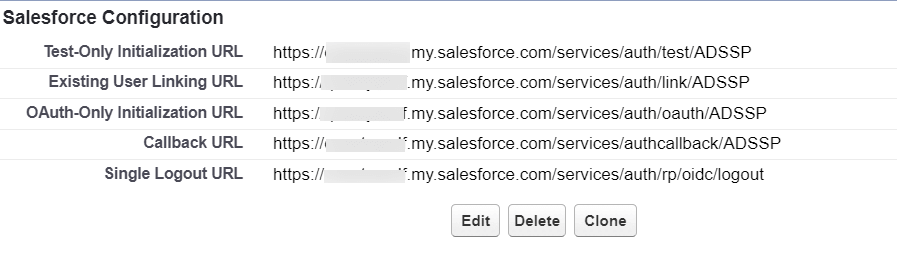
- After saving, copy the Callback URL as it will be required for Login Redirect URL in ADSelfService Plus' configuration.
- Now click the link next to Registration Handler.
- Go to the Class Body tab and replace the existing code with the following code:
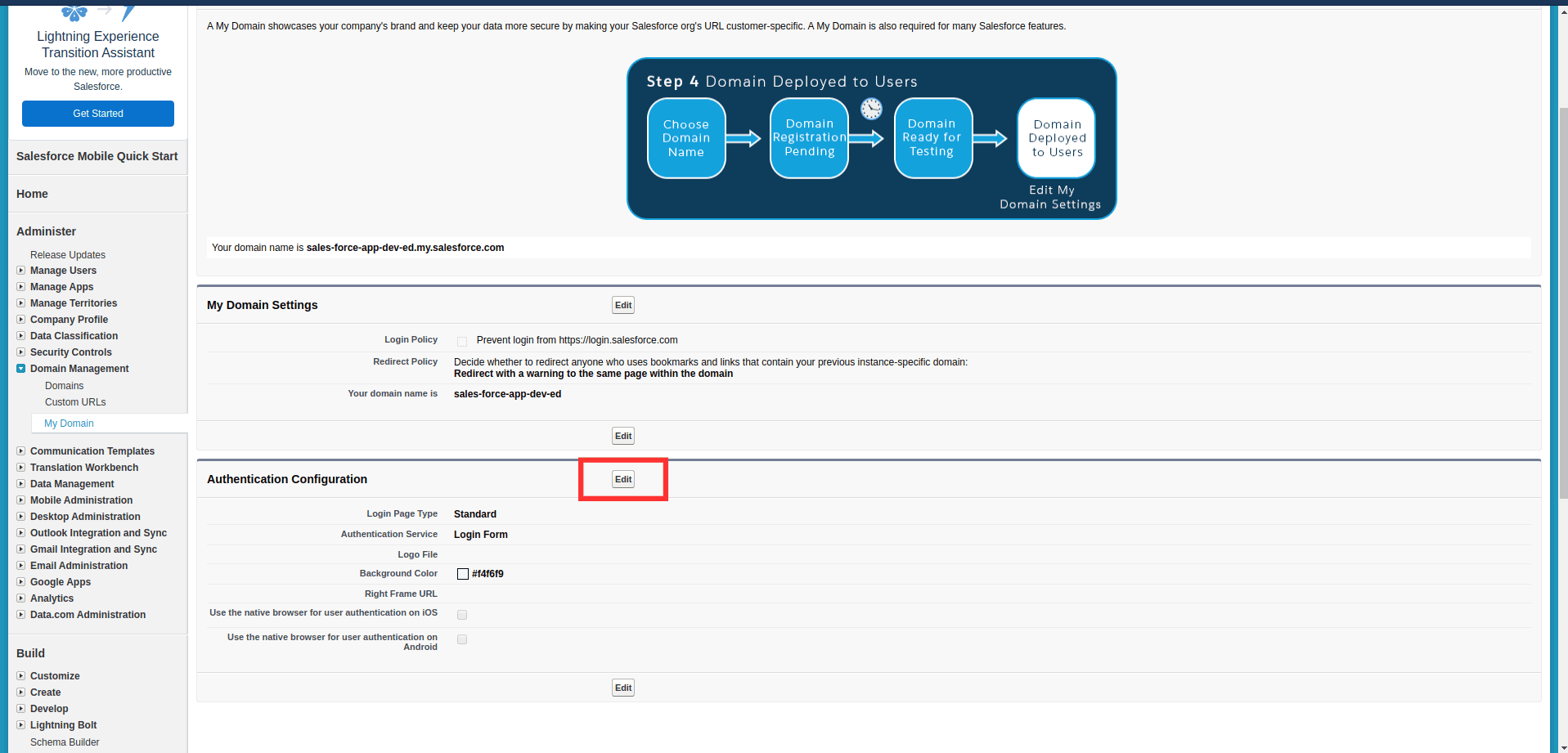
- Now, to include the instance of ADSelfService Plus in the Salesforce login screen, go to Administer > Domain Management > My Domain.
- Click the Edit button next to Authentication Configuration.
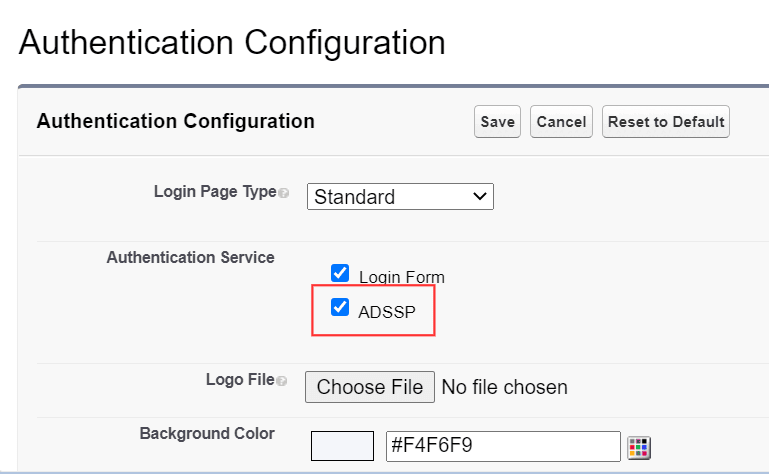
- In the next page, check the box next to ADSelfService Plus' instance under Authentication Service. Click Save.

global class ADSSPOIDCHandler implements Auth.RegistrationHandler{
global User createUser(Id portalId, Auth.UserData data){
//The user is authorized, so create their Salesforce user
User u = new User();
String username = data.email;
List userList = [Select Id, Name, Email, UserName From User Where ( UserName =: username) AND isActive = true ];
if(userList != null && userList.size() > 0) {
u = userList.get(0);
}
return u;
}
global void updateUser(Id userId, Id portalId, Auth.UserData data){
User u = new User(id=userId);
update(u);
}
}
ADSelfService Plus (identity provider) configuration steps
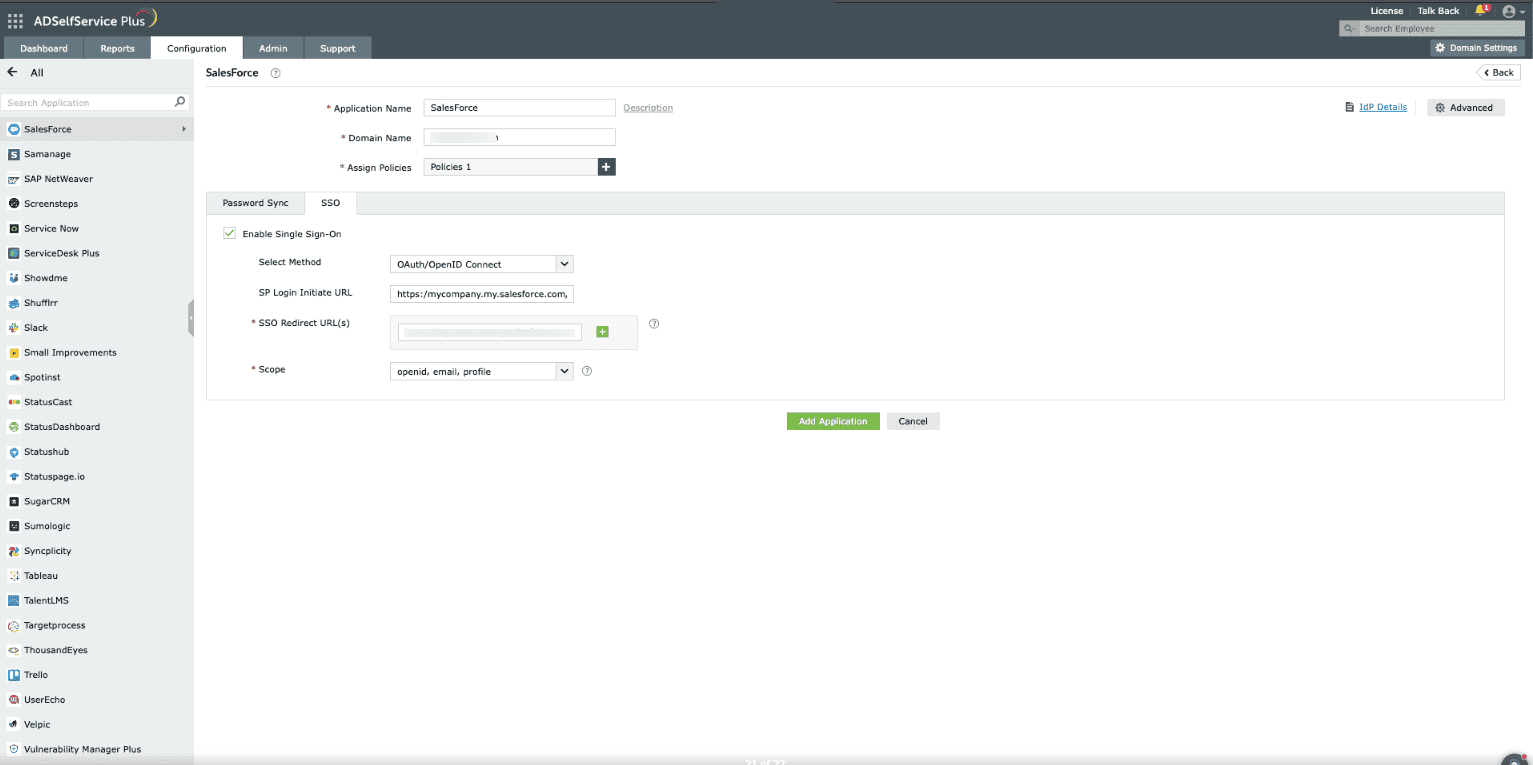
- Switch back to ADSelfService Plus' Salesforce configuration page.
- Enter the Application Name and Description as per your preferences.
- Enter the Domain Name of your Salesforce account. For example, if your Salesforce username is johnwatts@thinktodaytech.com, then thinktodaytech.com is your domain name.
- In the Assign Policies field, select the policies for which SSO need to be enabled.
- Under the SSO tab, select Enable OAuth/OpenID Connect.
- Choose OAuth/OpenID Connect from the Select Method drop-down.
- Enter the Salesforce portal's login URL in the SP Login Initiate URL field.
- Enter the Redirect URL copied in Step 11 of configuring Salesforce in the SSO Redirect URL field.
- Using the Scopes drop-down, select openid, which is the scope required for OIDC authentication. You can also specify scopes such as profile or email to include extra user information in the authorization request.
- Click Add Application to save the configuration.
The Well-known Configuration URL in the IdP details pop-up contains all the endpoint values, supported scopes, response modes, client authentication modes, and client details. This is enabled only after you finish configuring the application for SSO in ADSelfService Plus. You can provide this to your service provider if required.