Password Synchronization with Oracle Database
Steps to configure Oracle Database accounts with ADSelfService Plus
Important: Install the Password Sync Agent to synchronize native password changes and resets.
- Log in to the ADSelfService Plus admin console with admin credentials.
- Navigate to Configuration > Self-Service > Password Sync/ Single Sign On.
- Select the Oracle Database application.
- Enter the Application Name and Description.
-
In the Assign Policies field, select the policies for which password sync need to be enabled.
Note: ADSelfService Plus allows you to create OU and group-based policies for your AD domains. To create a policy, go to Configuration > Self-Service > Policy Configuration > Add New Policy.
- Select Enable Password Sync.
- Enter the System Name / IP Address and the Port Number of the Oracle Database.
- Select the Connection Type. It can be either the Service Name or the system identifier (SID).
- Enter the Username and Password of the Oracle Database
- Enter the name of the Oracle Database in the Database Name field.
- Click Add Application
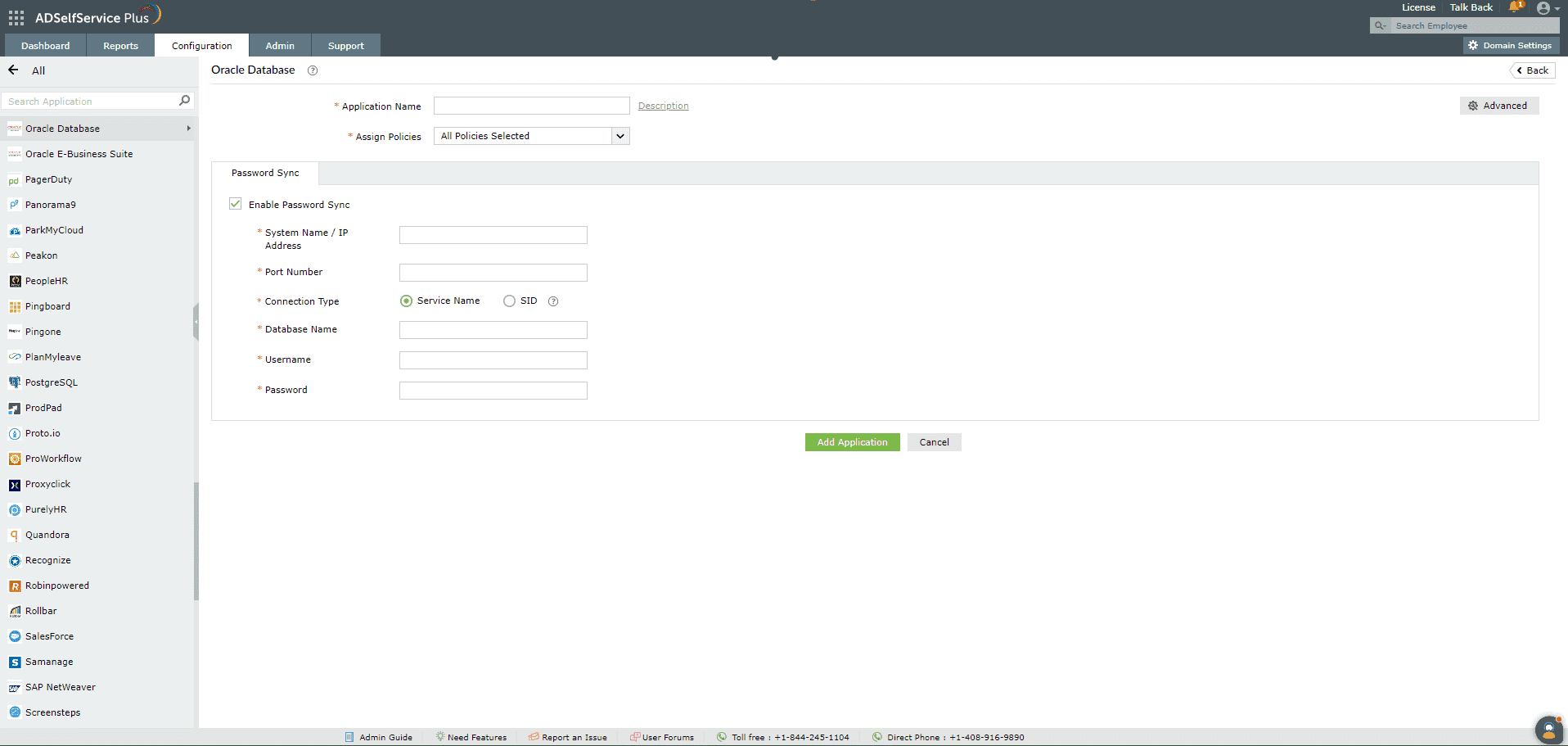
Note: You can also find Oracle Database application that you need from the search bar located in the left pane or the alphabet-wise navigation option in the right pane.
Note: The Connection Type is determined by how the Oracle Database is configured in your organization. Please contact your Oracle Database administrator for this information.