Password Policy Enforcer
ADSelfService Plus' Password Policy Enforcer feature ensures that users choose strong passwords that meet your organization's password policy and achieve compliance with regulatory norms.
How it works
The Password Policy Enforcer validates passwords against custom admin-defined rules during self-service password resets, password changes, and login attempts. It checks passwords for complexity requirements including character types, repetition patterns, keyboard sequences, dictionary words, and length constraints.
The feature can also integrate with Have I Been Pwned to detect compromised passwords and force users to change weak or breached passwords during login attempts across web portals, mobile sites, mobile apps, and Windows machines.
Prerequisites
Administrator access: You must have administrator or technician-level access to the ADSelfService Plus portal to configure Password Policy Enforcer settings.
Endpoint version dependencies (for regex patterns): If enabling regex-based password policies, ensure the login agent on user machines is version 6.11 or above, and the ADSelfService Plus mobile app is at least version 1.7.2 (Android) or 1.6.6 (iOS).
Configuring Password Policy Enforcer
To configure password policy settings in ADSelfService Plus:
- Log in to the ADSelfService Plus admin portal.
- Navigate to the Configuration tab. Under the Self-Service section, select Password Policy Enforcer.
- Enable Enforce Custom Password Policy.
- Configure the following policy settings:
- Restrict Characters: Restrict the number of special characters, numbers, and Unicode characters used in passwords.
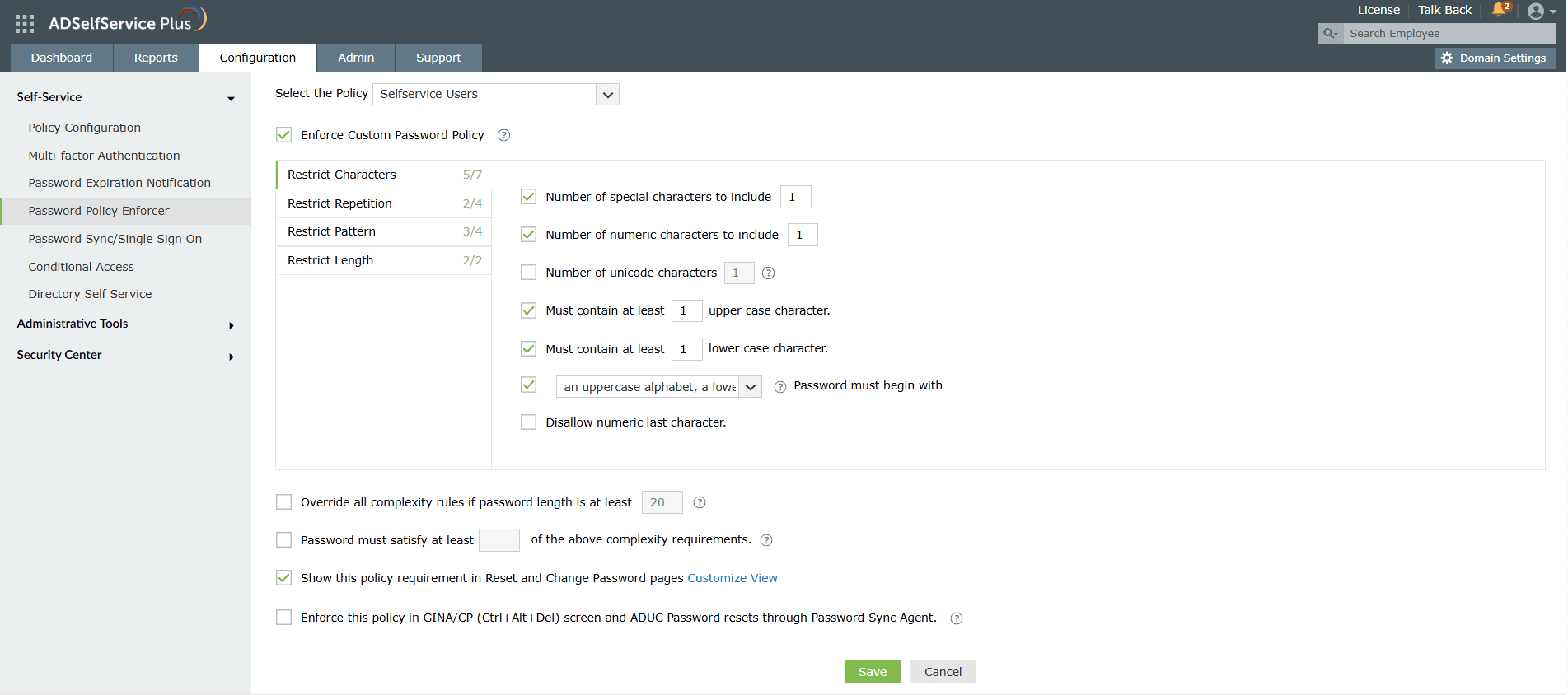
- Repetition: Enforce a password history check during password reset, and restrict the consecutive repetition of a specific character from the username (e.g., "aaaaa" or "user01").
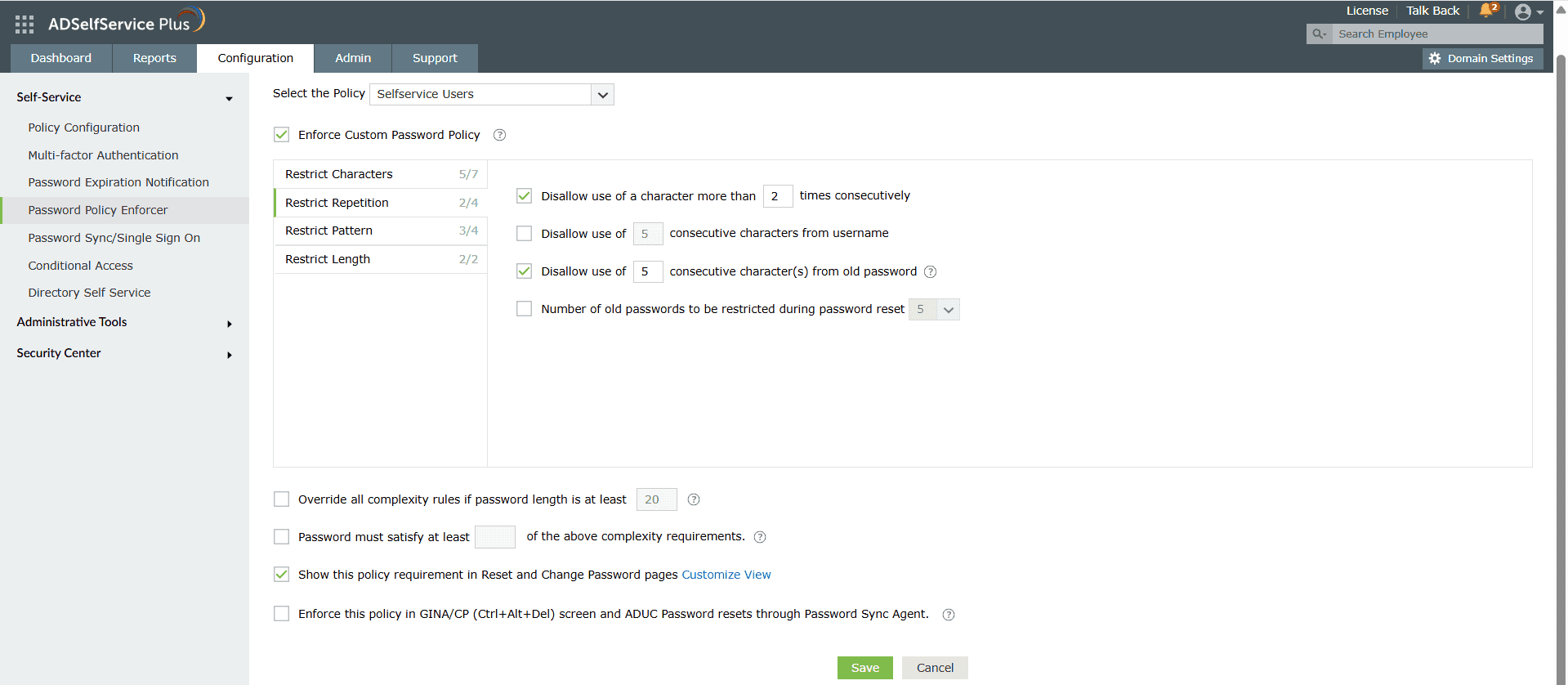
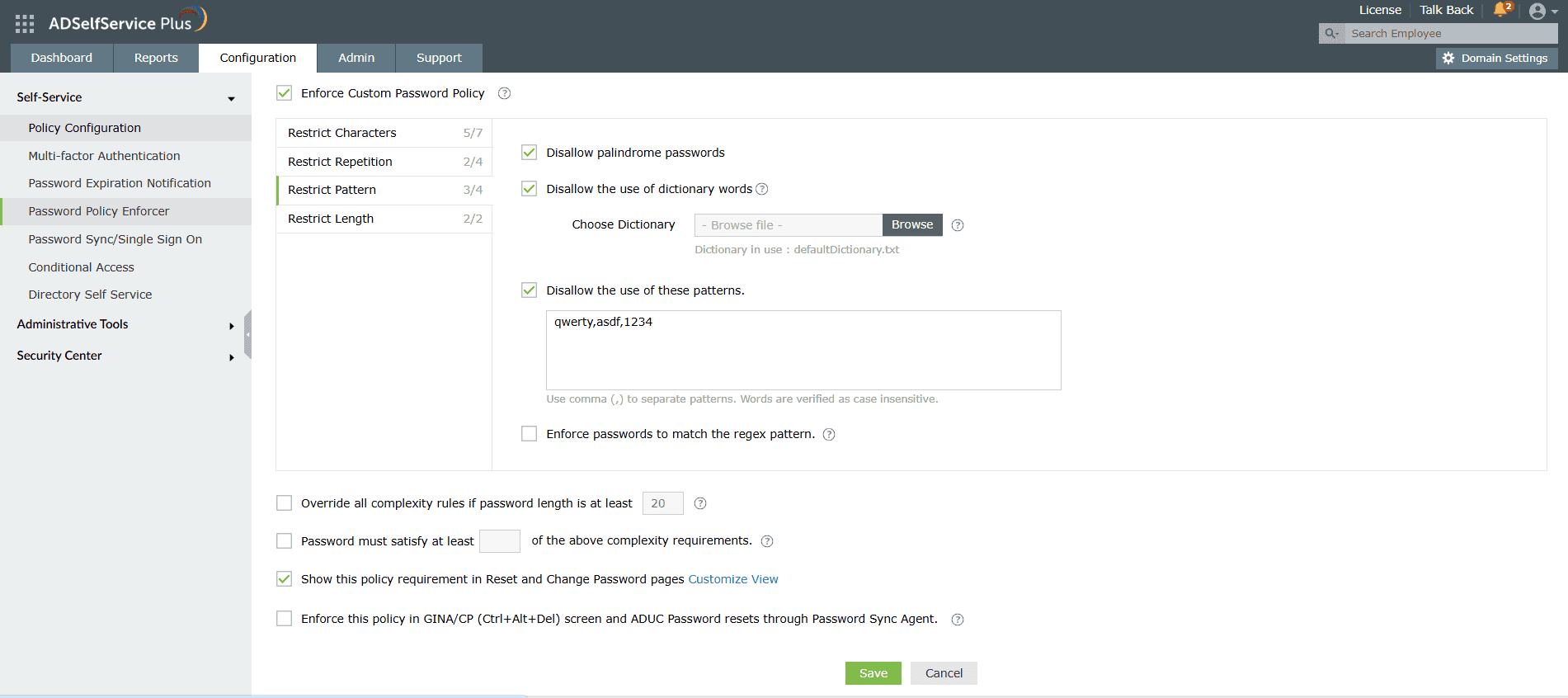
- Patterns: Restrict keyboard sequences, dictionary words, and palindromes, or ensure that users' passwords meet specific criteria by enforcing a regex pattern. Learn more about setting a regex pattern here.
- Important: Ensure that the regex pattern and other password policy rules do not conflict with each other.
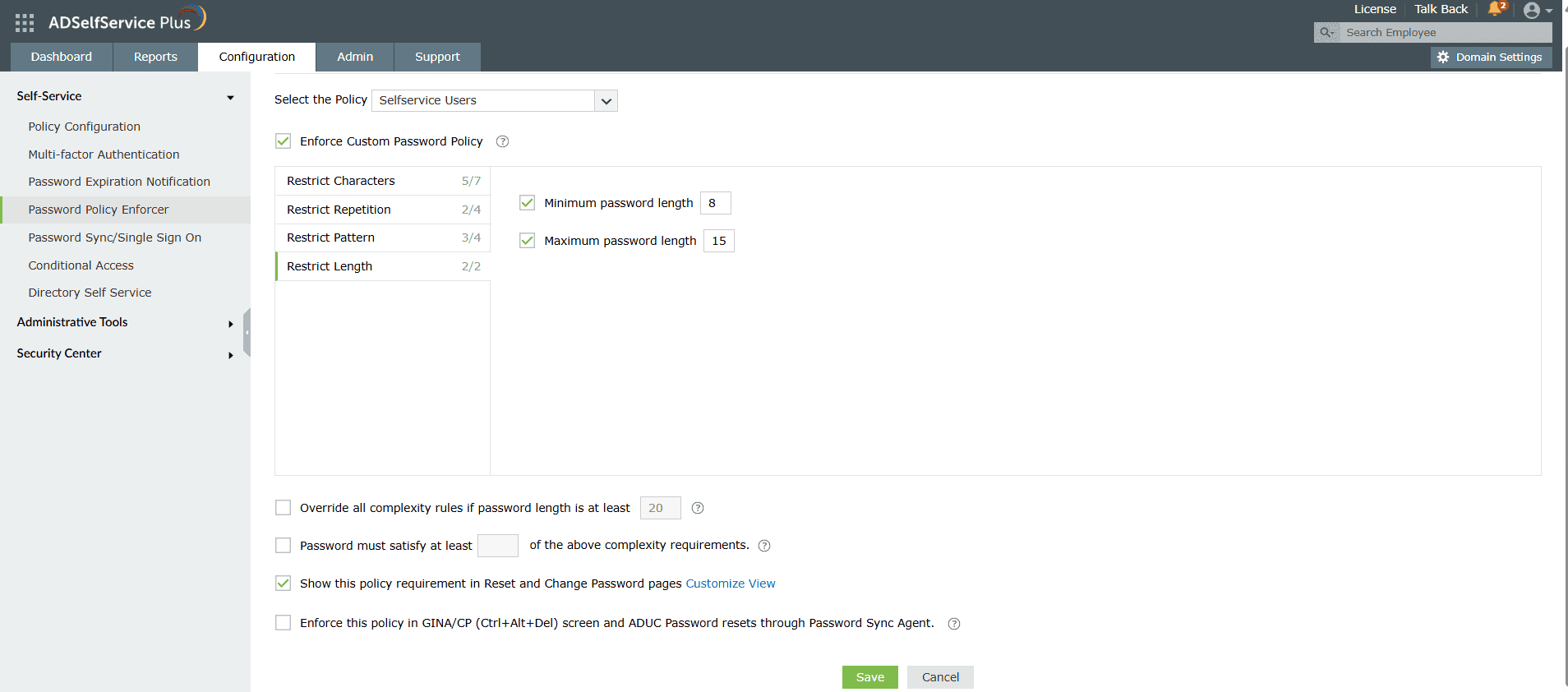
- Length: Specify the minimum and maximum password length.
- Override all complexity rules if password length is at least <n>: When this option is enabled, users are allowed to set a password that does not need to meet complexity requirements (such as uppercase letters, numbers, or special characters) as long as the password length is equal to or greater than the specified value (for example, 20 characters).
- Password must satisfy at least <n> of the above complexity requirements: Specify the minimum number of complexity rules (such as uppercase letters, numbers, or special characters) that a user’s password must meet during self-service password reset and password change operations.For example, if <n> is set to 3, the password must comply with any three of the listed complexity requirements.
- Show this policy requirement in Reset and Change Password pages: Enable this option to display password policy requirements on the Reset Password and Change Password pages, helping users create compliant passwords.
- Enforce this policy in GINA/CP (Ctrl+Alt+Del) screen and ADUC password resets through Password Sync Agent: Enable this option to apply the configured password policy settings to passwords changed from the Windows Ctrl+Alt+Del (GINA/CP) screen and to password resets performed through Active Directory Users and Computers (ADUC) using the Password Sync Agent.This ensures that the same password rules are enforced across both user-initiated password changes and admin-initiated password resets.
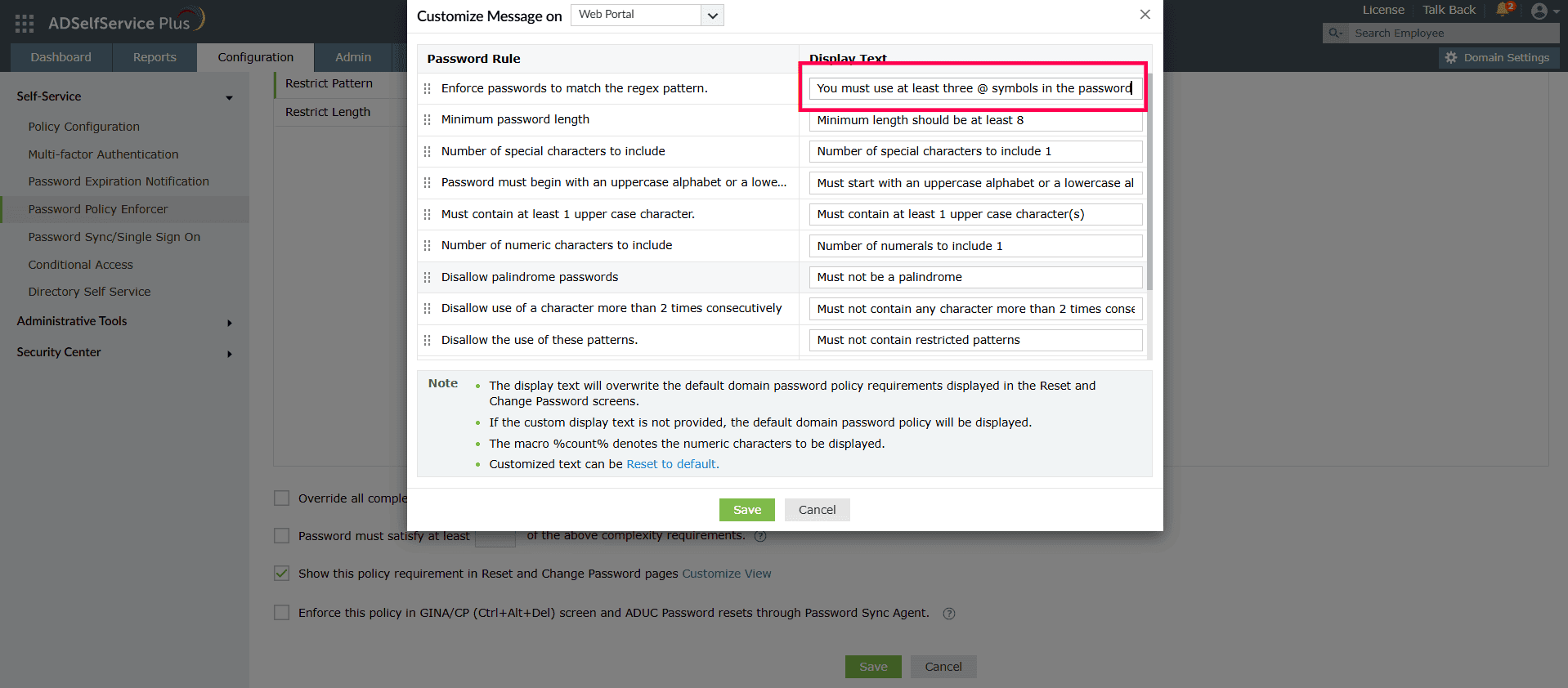
- Customize View:Click Customize View to open a pop-up where you can define how the password policy rules are shown to users during password reset.
For example, if a regex pattern requires the password to contain at least three @ symbols, you can clearly describe this requirement in the display text shown to users.
Note: If you enable or modify any of the settings above and the Password Sync Agent is installed, you need to update the configuration settings in the agent for the changes to take effect. Please refer to these steps to update the Password Sync Agent configurations.
Tips
- Offer visual feedback on user password strength by employing the Password Strength Analyzer. To enable it, open the Configuration tab > Self-Service section > Policy Configuration. Click Advanced. In the window that opens, go to the Reset & Unlock and select Enable Password Strength Analyzer.
- Balance security and usability: When setting password length requirements, consider enabling the override password rules option for very long passwords (e.g., 20+ characters) to encourage the use of passphrases while maintaining complexity for shorter passwords.
- Prevent policy conflicts: Before deploying regex-based password patterns, test them thoroughly to ensure they don't conflict with other policy rules (character restrictions, repetition limits, etc.).