Block users
The Block Users tab includes settings that enhance account security by preventing unauthorized access attempts. When users exceed a predefined number of invalid identity verifications or self-service action attempts, ADSelfService Plus can automatically block their access—either temporarily or until an administrator intervenes. This minimizes brute-force attacks and strengthens the overall authentication posture across all endpoints protected by ADSelfService Plus.
Limitations
- MFA failures with Duo Security or smart card authentication do not count toward the block threshold because these authenticators implement their own blocking and lockout mechanisms.
- Blocking is enforced only for operations and endpoints protected by ADSelfService Plus; it does not replace or override native account lockout policies configured in your AD domain.
Configure user blocking
- Log in to ADSelfService Plus with administrative credentials.
- Navigate to Configuration > Self-Service > Policy configuration.
- In the policy list, click the Advanced icon for the policy you want to enable user blocking.
- In the pop-up window, select Block Users.
- Under Block users who fail identity verification, configure the following settings:
- Define the threshold
Use Allow a maximum of X invalid attempts within Y minutes to specify the number of identity verification failures allowed within a specific time window.
- Define the block limit
Use Block users for a period of X mins to define how long the user should remain blocked. After the specified time expires, the user is automatically. You can either define a specified a time period in minutes or select Forever to keep the user blocked until an administrator manually unblocks them.
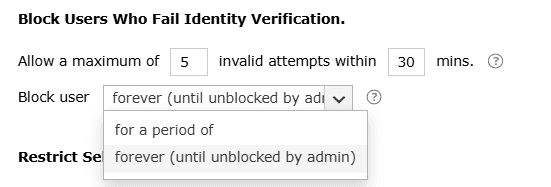
- Define the threshold
- Click OK to save your changes.
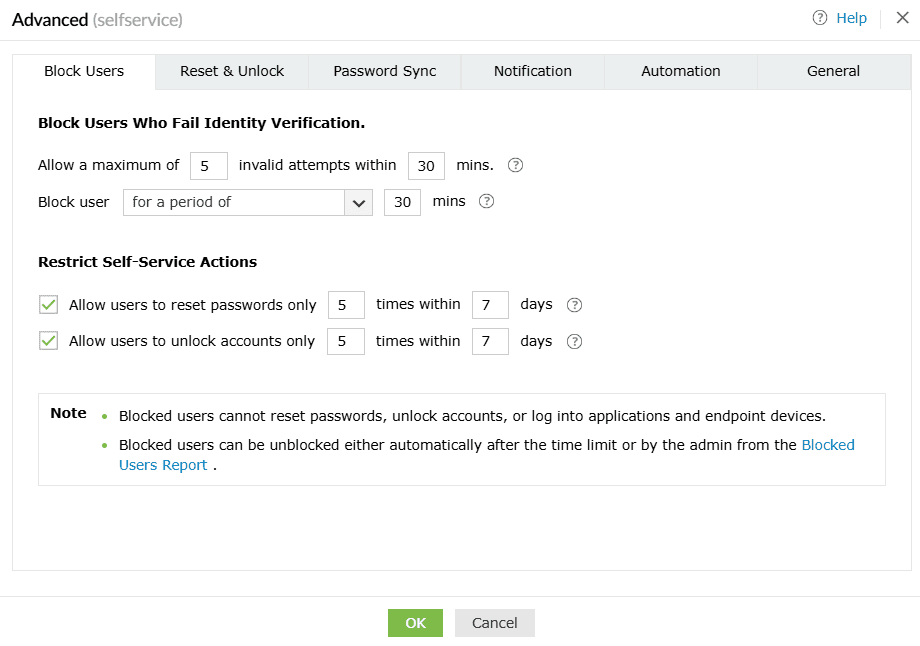
Every failed identity verification attempt counts toward the limit, including:
- Incorrect password entry
- Invalid backup codes
- Incorrect or expired OTP submissions, including during enrollment
- Failed MFA verifications, except for Duo Security and smart card
While blocked, the user:
- Cannot reset passwords or unlock accounts through ADSelfService Plus
- Cannot sign in to applications or endpoint devices that rely on ADSelfService Plus for authentication/MFA
Restrict self-service actions
To further mitigate automated attacks, you can limit how often users perform self-service operations.
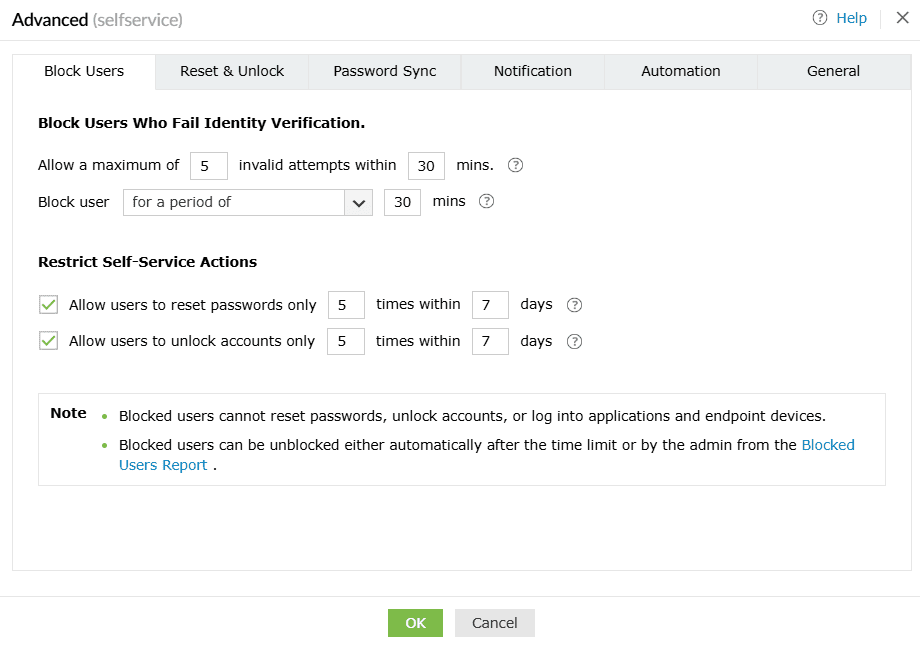
- In the same Advanced settings pop-up, navigate to the Restrict Self-Service Actions section.
- Configure the following:
- Allow users to reset passwords only X times within Y days: Set a limit on password resets within a specific number of days. For instance, allowing three resets in seven days prevents users from resetting their password more than three times per week.
- Allow users to unblock accounts only X times within Y days: Set a limit on account unlocks within a specific number of days. For example, five unlocks in 30 days means users can't unlock their account more than five times per month.
- Click OK to save your changes.
Audit blocked users
You can review the list of users who have failed identity verification and have been blocked from accessing ADSelfService Plus.
- In the ADSelfService Plus admin portal, navigate to Reports > MFA Reports > Blocked Users Report.
- Select the relevant policy for which you want to view the list of blocked users and specify the period.
- Click Generate.
- Review:
- Currently blocked users
- Previously blocked users and their block or unblock history
- Timestamps showing when users were blocked
Click here to learn more about Blocked Users Report.
Unblock users
To unblock users,
- Navigate to Reports > MFA Reports > Blocked Users Report.
- Choose the policy and click Generate.
- Select the checkboxes next to the users you want to unblock from the list.
- Click Unblock, and then click OK to confirm.

Tips
- Set reasonable thresholds for invalid attempts to balance usability and security.
- Periodically review the Blocked Users Report to identify patterns that may indicate targeted attacks.
- Encourage users to enroll in MFA methods and keep their recovery information up-to-date to reduce failed verification attempts.
- Use temporary blocking instead of permanent blocking unless required by security policy.
- Apply separate policies for high-privilege accounts to enforce stricter verification limits.