☰
Related Products
 ADManager Plus
 ADAudit Plus
 Exchange Reporter Plus
 M365 Manager Plus


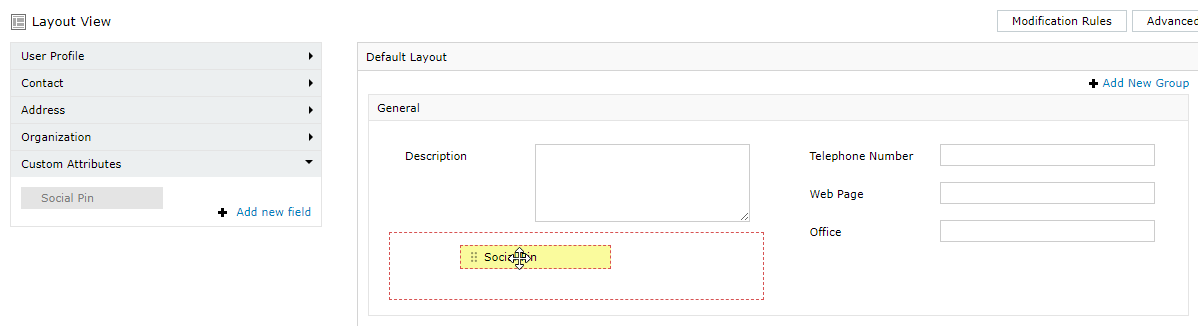
The Attribute List is the panel within the Self Update Layout editor that contains all the fields administrators can expose to end users for self-service profile updates. It is divided into two categories:
By selectively dragging fields from the Attribute List into the layout canvas, administrators control exactly which pieces of directory information users are allowed to view and edit, without IT intervention.
General attributes correspond directly to standard AD user object properties. They are grouped into four categories in the Attribute List panel on the left side of the layout editor.
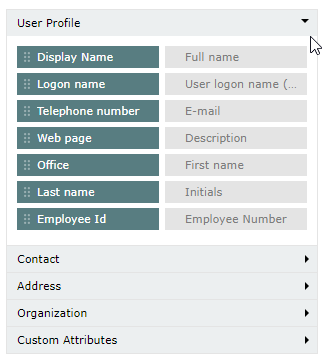
| Field | Notes |
|---|---|
| Display Name | The name shown in the directory and address book. |
| Full Name | The user's full legal name. |
| Logon Name | The user's UPN-format logon name (e.g., user@domain.com). |
| User Logon Name (pre-Windows 2000) | Legacy SAM-account name. Must be 20 characters or fewer. The following characters are not permitted: ` \ / [ ] : ; |
| Telephone Number | The user's primary office telephone number. |
| The user's primary email address. | |
| Web Page | URL of the user's personal or work web page. |
| Description | A free-text description field. |
| Office | The user's office location. |
| First Name | The user's given name. |
| Last Name | The user's surname. |
| Initials | The user's initials. |
| Employee ID | The organization's internal employee identifier. |
| Employee Number | An additional numeric employee reference field. |
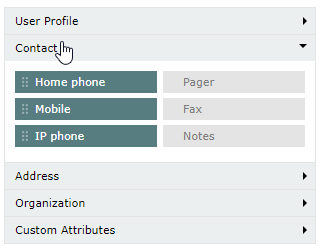
| Field | Notes |
|---|---|
| Home Phone | The user's personal home phone number. |
| Pager | The user's pager number, if applicable. |
| Mobile | The user's mobile/cell phone number. |
| Fax | The user's fax number. |
| IP Phone | The user's VoIP phone number or extension. |
| Notes | A free-text field for miscellaneous contact-related notes. |
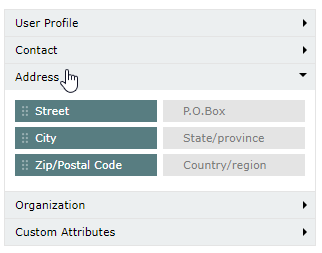
| Field | Notes |
|---|---|
| Street | The user's street address. Renders as a multi-line text box. |
| P.O. Box | The user's post office box number. |
| City | The city or locality of the user's address. |
| State/Province | The state or province of the user's address. |
| Zip/Postal Code | The ZIP or postal code of the user's address. |
| Country/Region | The country or region of the user's address. |
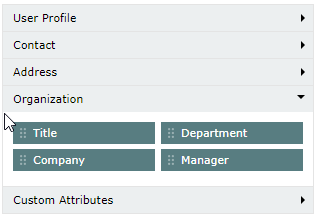
| Field | Notes |
|---|---|
| Title | The user's job title (e.g., Senior Engineer, Product Manager). |
| Department | The department or business unit the user belongs to. |
| Company | The name of the organization or subsidiary the user is part of. |
| Manager | The user's direct reporting manager. Populated from the directory — the value must correspond to a valid user object in Active Directory. |
Custom Attributes allow administrators to extend the Self Update layout with fields beyond the built-in general attributes — for example, a badge number, cost center code, or any other LDAP attribute specific to your organization.
When creating a custom attribute, select the data type that matches the underlying LDAP attribute:
| Data Type | Use when… |
|---|---|
| Unicode String | The attribute stores text (most common). |
| Integer | The attribute stores a whole number. |
| Boolean | The attribute stores a true/false value. |
| Large Integer | The attribute stores a large numeric value (e.g., timestamps). |
 Edit icon next to the layout you want to modify. Edit icon next to the relevant layout. Edit icon next to the custom field you want to change. Edit icon next to the relevant layout.
 Delete icon next to the field you want to remove.
Copyright © 2026, ZOHO Corp. All Rights Reserved.