MFA Usage from Mobile Devices
Enrolling for MFA in ADSelfService Plus lets users perform MFA actions from their computers as well as mobile devices, like smartphones and tablets. The MFA Usage from Mobile Devices report provides specialized visibility into mobile authentication patterns made via the ADSelfService Plus mobile app for iOS and Android devices as well as from mobile browsers. The information presented in this report includes the username, the time MFA was attempted, the policy the user is assigned to, the operating system of the device, the type of authenticator used, the device's IP address, and the status (success or failure) of each MFA attempt.
- How it works
- Generating the MFA Usage from Mobile Devices Report
- Customizing the MFA Usage from Mobile Devices Report
- Automating the MFA Usage from Mobile Devices Report
- Exporting the MFA Usage from Mobile Devices Report
- Tips
How it works
This report queries the ADSelfService Plus database to retrieve MFA authentication data specifically from mobile devices, including the ADSelfService Plus mobile app for iOS and Android, as well as mobile browser access. It displays mobile-specific attributes like device operating systems and mobile app versions to provide comprehensive mobile authentication analytics.
Limitation: This report does not include authentication data from desktop or laptop computers. To view MFA data for other endpoints and actions, you must use the MFA Usage Audit Report.
Prerequisite: You must have administrator or technician-level access to the ADSelfService Plus portal to generate and view reports.
Generating the MFA Usage from Mobile Devices Report
To generate the MFA Usage from Mobile Devices report:
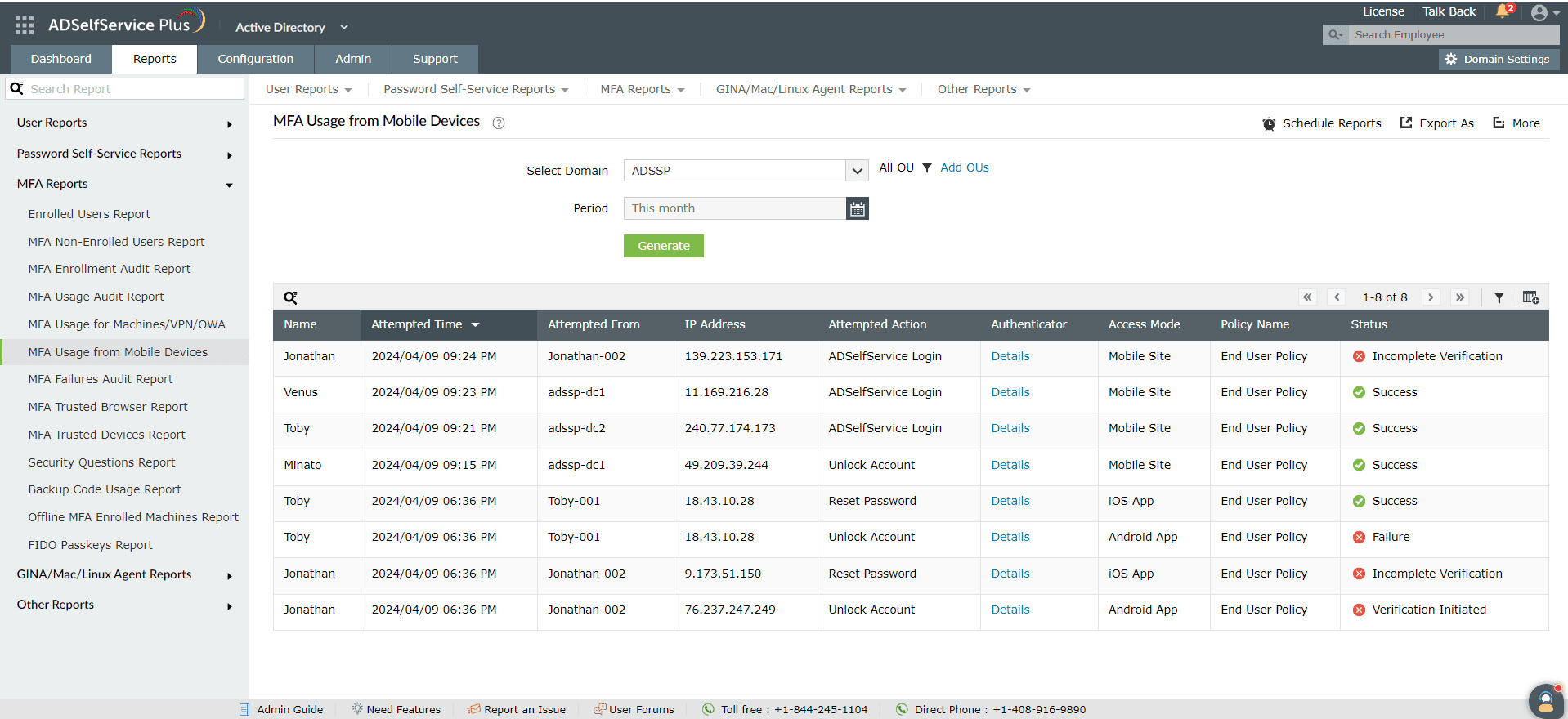
- Log into the ADSelfService Plus admin portal with administrator or operator privileges.
- Navigate to Reports > MFA Reports > MFA Usage from Mobile Devices.
- Specify the domain you'd like to search within using the Select Domain option.
- Specify OUs using the Select OUs option, if needed.
- The Period drop-down menu can be used to specify the period for which to generate reports. Options include Today, Yesterday, Last 7 days, Last 30 days, This month, and Custom Period.
- Click Generate.
The Status column displays if the MFA status of each attempt is a Success or a Failure. Incomplete verification attempts are also displayed. Click Details in the Authenticator column to display all the authenticators used for the login attempt, including each of their MFA statuses.
Customizing the MFA Usage from Mobile Devices Report
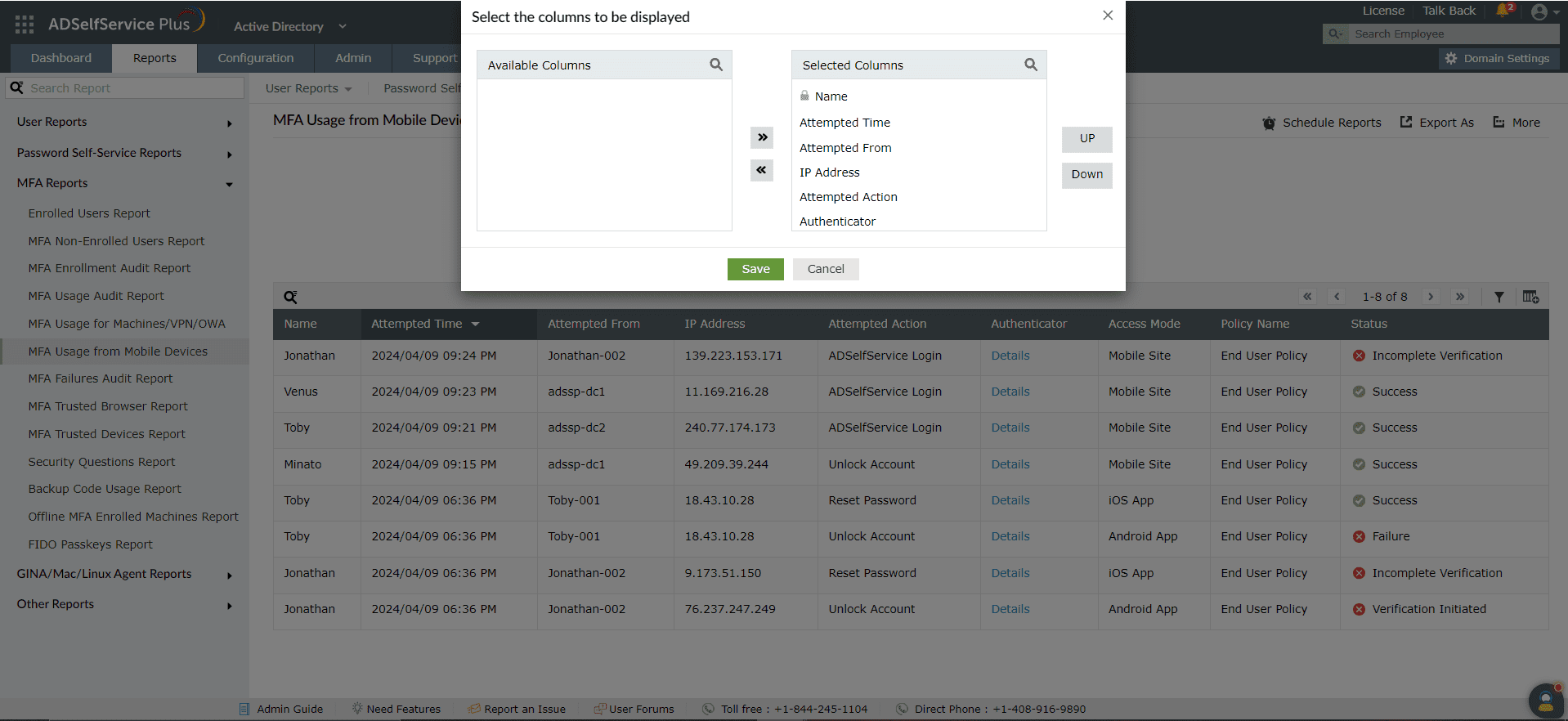
- Adding or removing columns: To add or remove columns, click the Add/Remove Columns [
 ] option at the far-right side of the report page. In the Select the columns to be displayed pop-up that appears, select the required fields under Available Columns and click the right arrow [>>] to move it to Selected Columns. To remove columns, select the unused fields under Selected Columns and click the left arrow [<<] to move it to Available Columns.
- Ordering the columns: The columns' positions can also be altered by selecting a value under Selected Columns and using the Up and Down buttons to change its position.
Advanced filtering
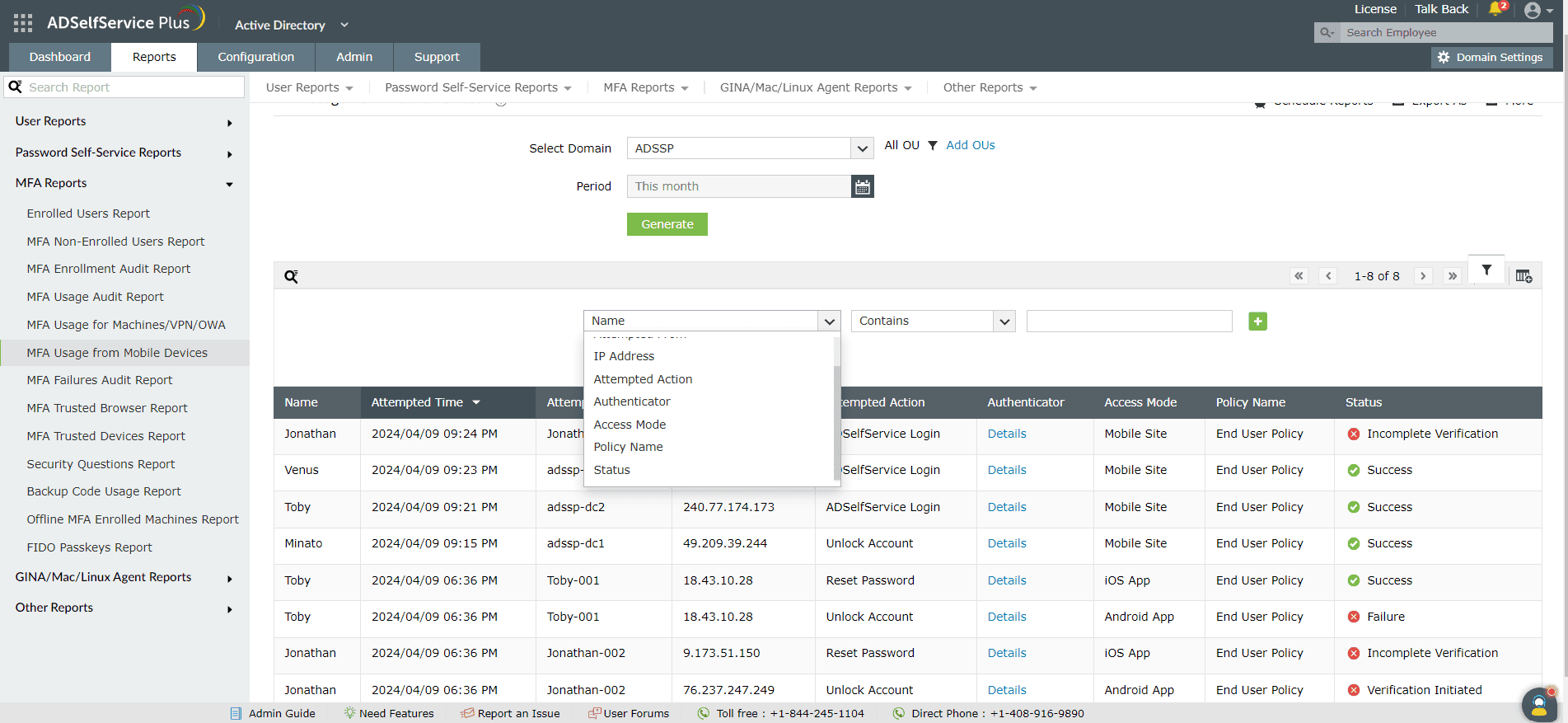
Once the report is generated, the entries can be narrowed-down based on the following parameters by clicking the Advanced Filter [ ] icon at the far-right of the report:
- Attempted From: This option lets you display results by the name of the endpoint MFA was attempted from. The conditions available to refine this include Contains, Does Not Contain, Equals, Is Not Equal To, Starts With, and Ends With.
- IP Address: This option lets you display results by IP address. The conditions available to refine this include Contains, Does Not Contain, Equals, Is Not Equal To, Starts With, and Ends With.
- Status: Entries can be narrowed down by whether MFA was a Success or a Failure, or if MFA was Incomplete.
- Attempted Action: The report entries can be narrowed down based on the MFA action attempted or excluding a certain action. The actions available to refine this include ADSelfService Login, Machine Login, OWA Login, Reset Password, and SSO Application Login.
- Authenticator: The report entries can be narrowed based on the authenticator with which MFA was attempted. You can do this by specifying or excluding a particular authenticator.
- Access Mode: The report entries can be narrowed based on the type of device MFA was attempted from. You can do this by specifying or excluding a particular device type.
- Policy Name: This option lets you narrow down the MFA attempts by policy name. The conditions available to refine this include Contains, Does Not Contain, Equals, Is Not Equal To, Starts With, and Ends With.
Sorting
Click any of the column headers (except the Status and Authenticator columns) to view the report's entries in ascending or descending order.
Searching
- Click the search icon [
 ] to search for specific data in the report.
- Specific users can be searched for using attributes such as the username, policy name, IP address, and type of endpoint MFA was attempted from.
Searching happens using the criteria contains. For example, if the username column is searched for the word jack, then all usernames containing the sequence jack will be displayed as a result.
Automating the MFA Usage from Mobile Devices report
The Schedule Reports option can be used to schedule the generation of reports at specified intervals and automatically email them to administrators or specific email addresses. Learn how to schedule reports here.
Exporting the MFA Usage from Mobile Devices report
The Export As option at the right corner of the page helps export the report in CSV, PDF, XLS, XLSX, HTML, and CSVDE formats.
Tips
- The More option at the right corner of the page lists the Printable View, Send Mail, and Export Settings options.
- The Printable View option can be used to preview and print the report.
- The Send Mail option can can be used to email the report to the desired email addresses.
- Additionally, you can configure custom Export Settings, such as a personalized title for the report and a header logo that you may wish to display on each page.
- Security auditing: Combine filters for IP Address and Authenticator to audit mobile access from unusual locations or to ensure compliance with policy (e.g., verifying that high-security actions use biometrics instead of SMS). You can then use Conditional Access policies to strengthen access control as per your security requirements.
The Schedule Reports option at the top-right corner of the page can be used to schedule the generation of reports at specified intervals to set up an automated scheduler. Learn to schedule reports here.